> ## Documentation Index
> Fetch the complete documentation index at: https://help.i88.io/llms.txt
> Use this file to discover all available pages before exploring further.
# How to Add and Configure Widgets on Your i88 Dashboard
> Learn how to add widgets to any dashboard tab, configure their data filters and settings, apply updates, and remove widgets you no longer need.
Widgets are the building blocks of your i88 dashboard. Each widget is a self-contained panel that surfaces a specific type of market data — from live price charts to macro indicators to breaking news. You can populate any tab with as many widgets as you need, configure each one to match your focus, and rearrange or remove them at any time without affecting the rest of your workspace.
## Widget catalog
i88 ships a growing library of widgets, grouped into five categories. Expand any widget to see what it looks like and what it shows.
### Market Overview
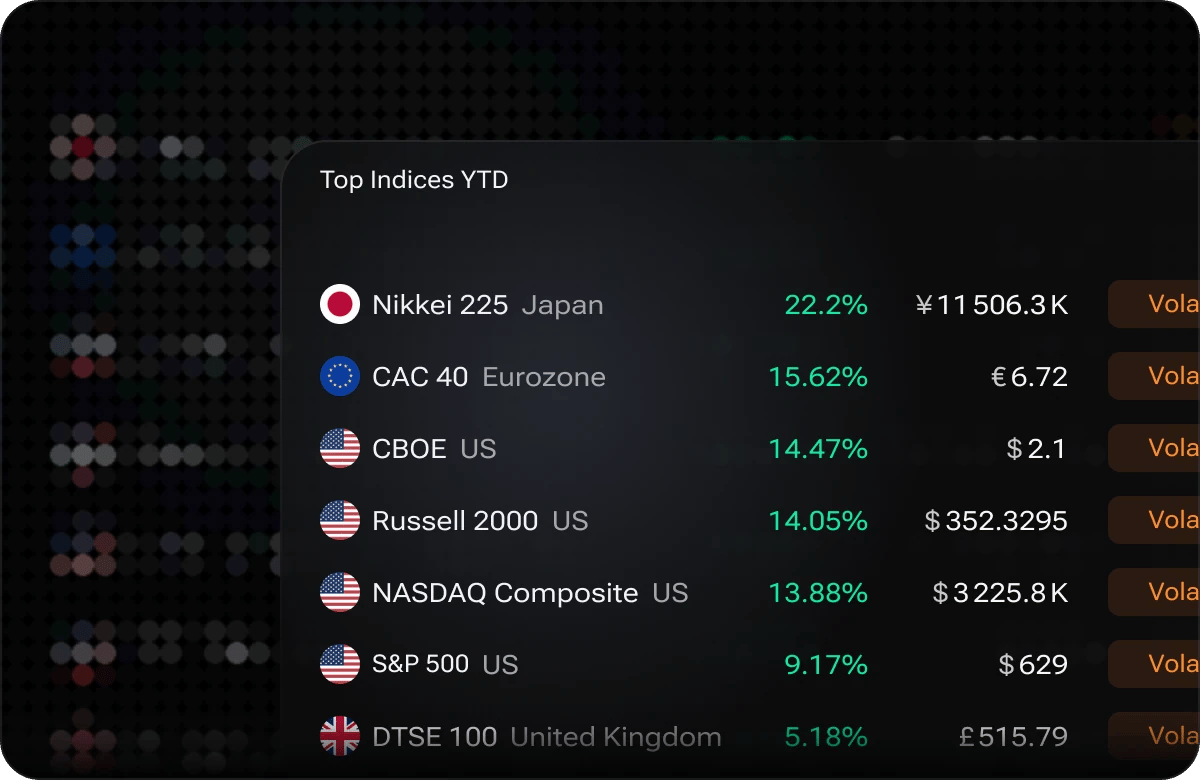 Year-to-date performance of major global indices, ranked, with each index's value and a volatility tag.
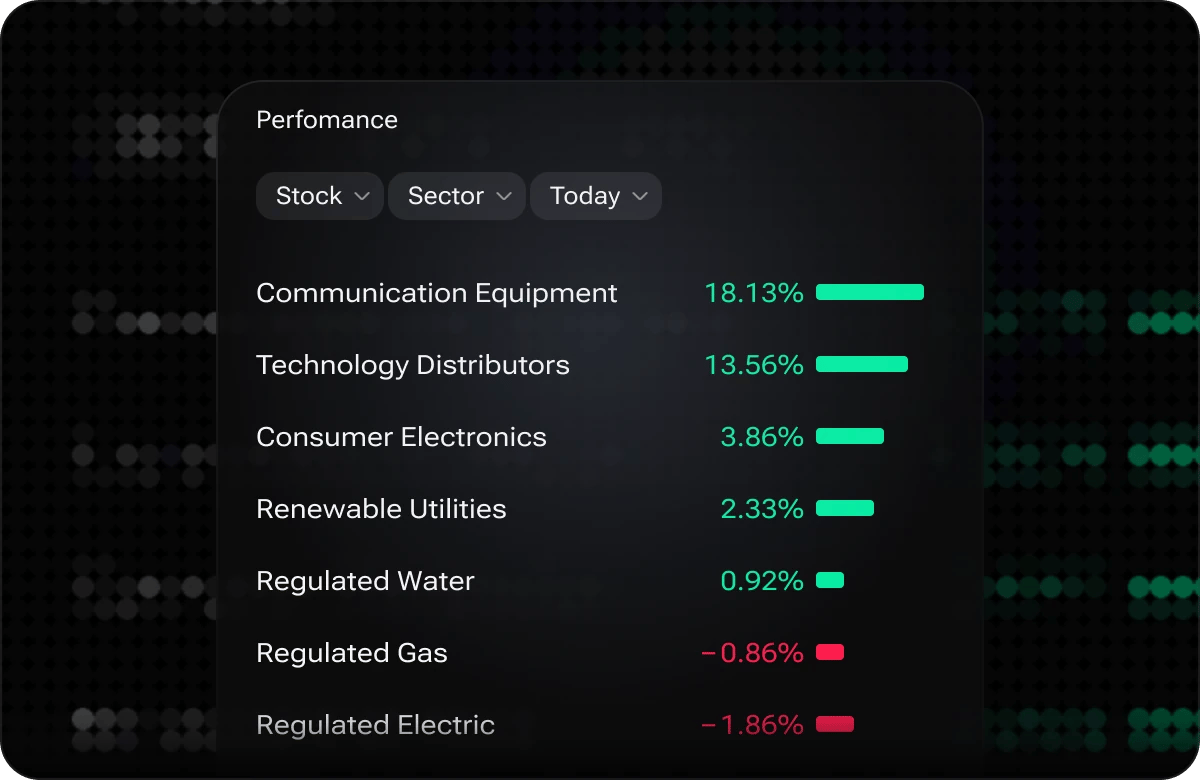 Relative strength of stock and forex sectors over a chosen period — see at a glance which sectors lead or lag.
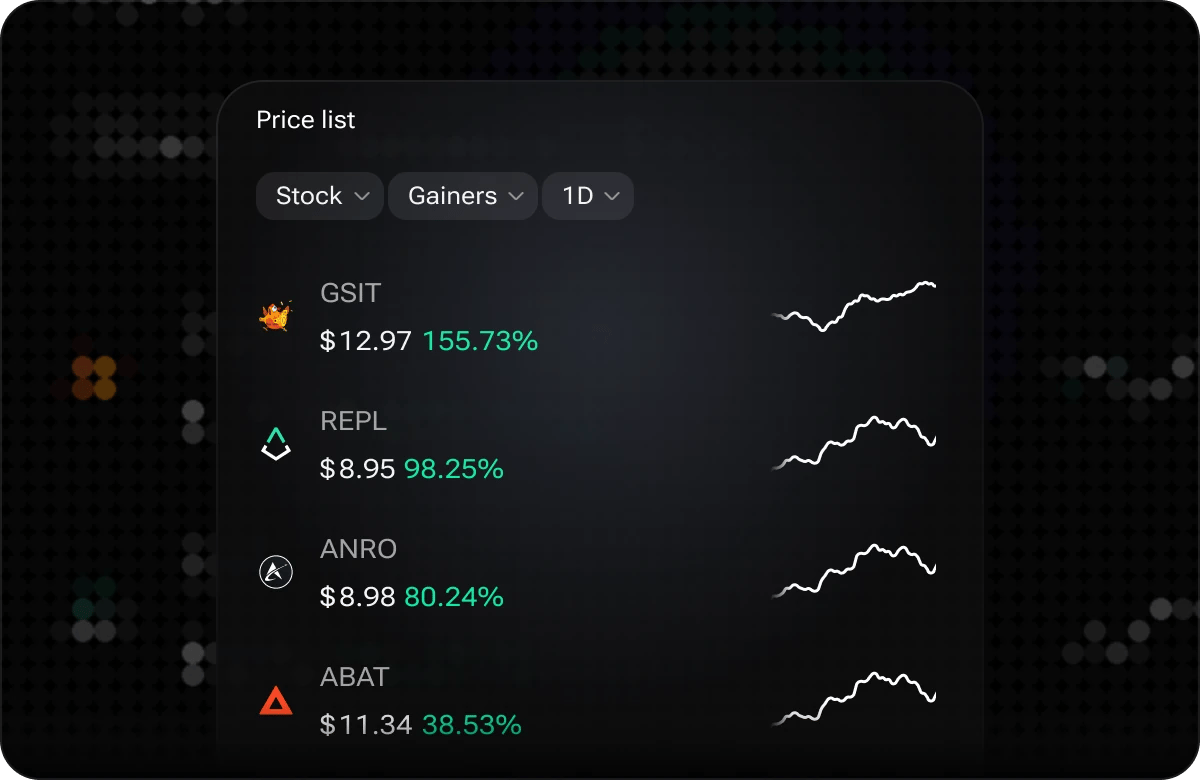 Top-moving tickers in real time for the selected market — switch between gainers and losers and change the period.
### Price & Charts
Top-moving tickers in real time for the selected market — switch between gainers and losers and change the period.
### Price & Charts
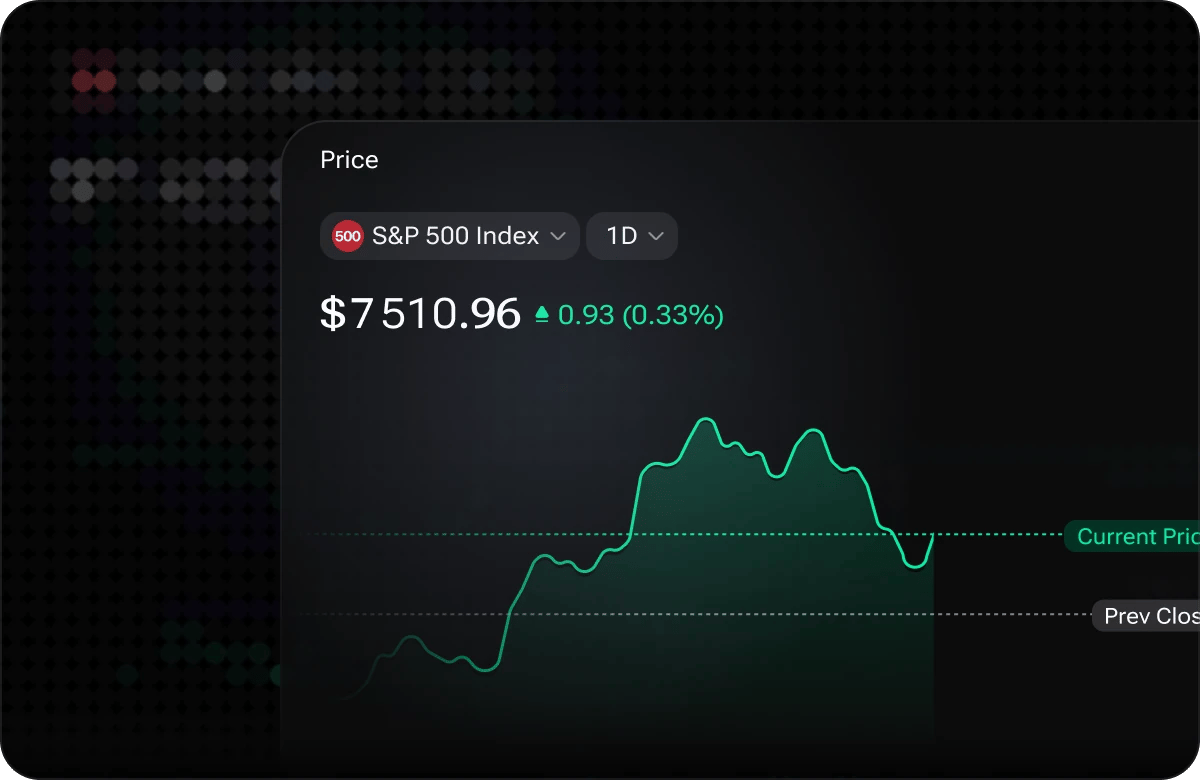 Live price and an intraday chart for any ticker, with previous close, current price and the day range.
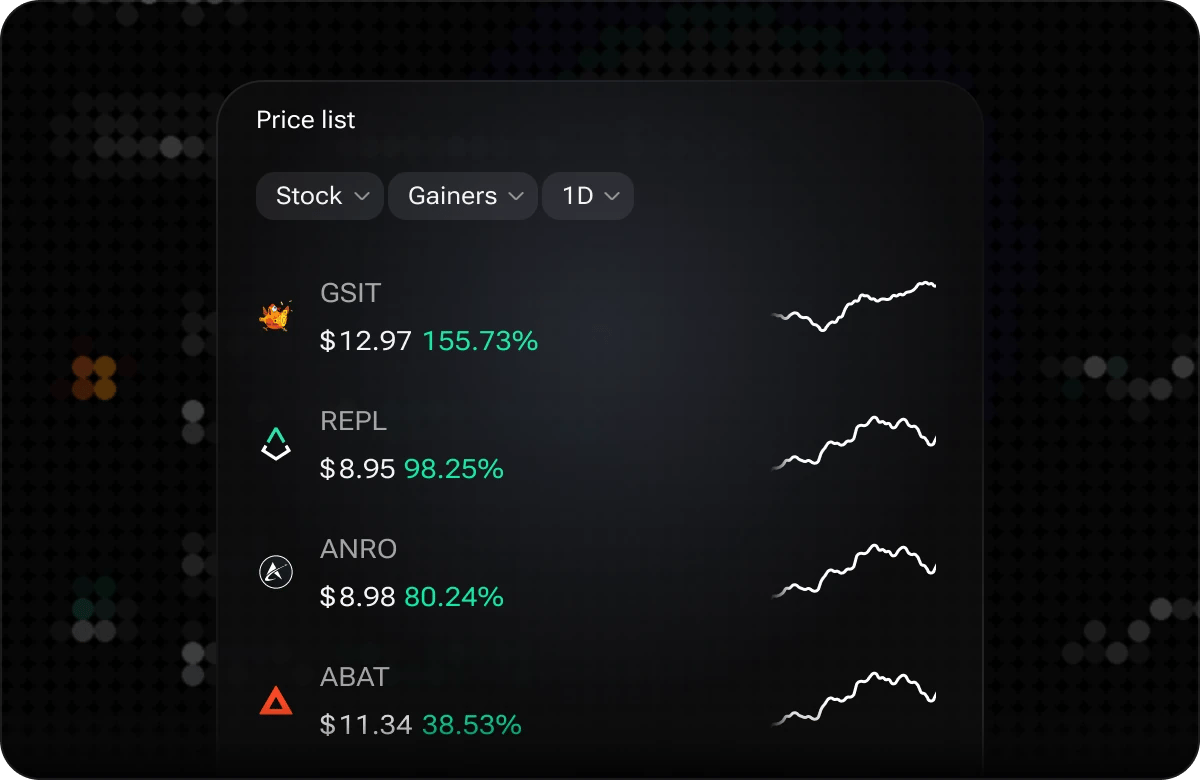 A compact, sortable list of tickers for a chosen market (crypto, stocks, commodities and more) with price, change and a sparkline.
### Macro & Economy
A compact, sortable list of tickers for a chosen market (crypto, stocks, commodities and more) with price, change and a sparkline.
### Macro & Economy
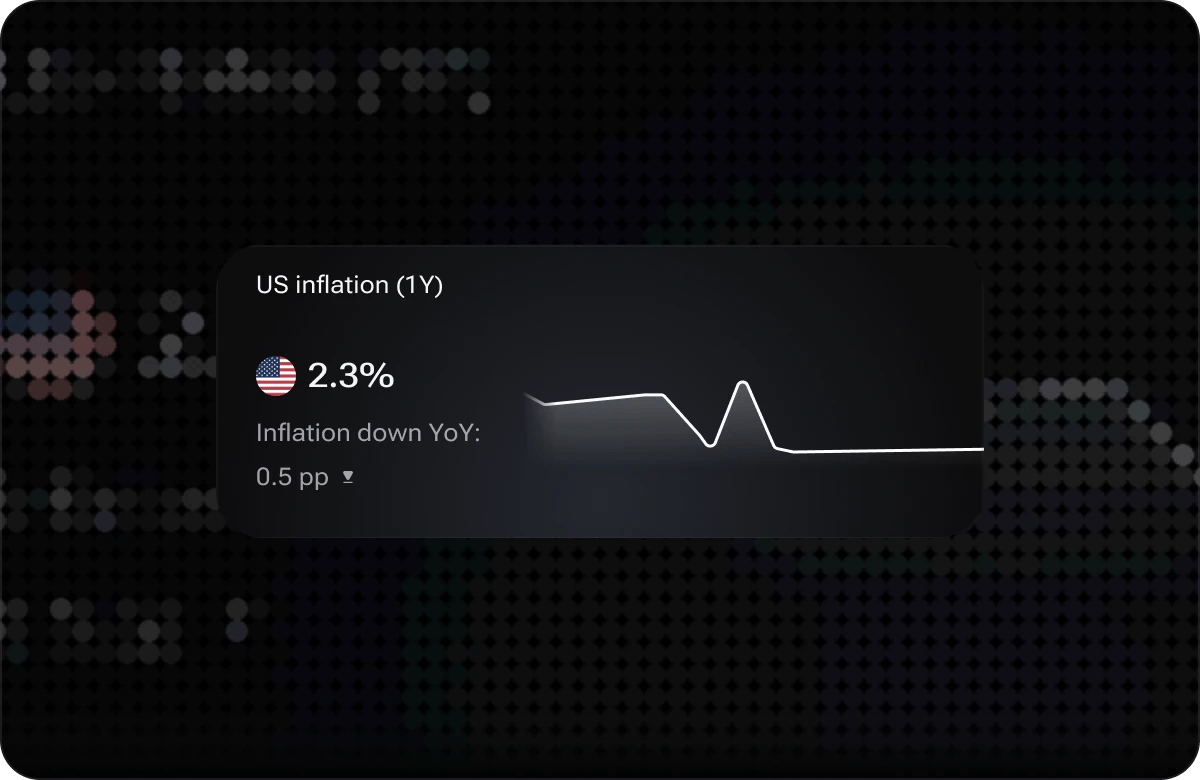 Current and historical U.S. inflation (CPI) with the year-over-year change.
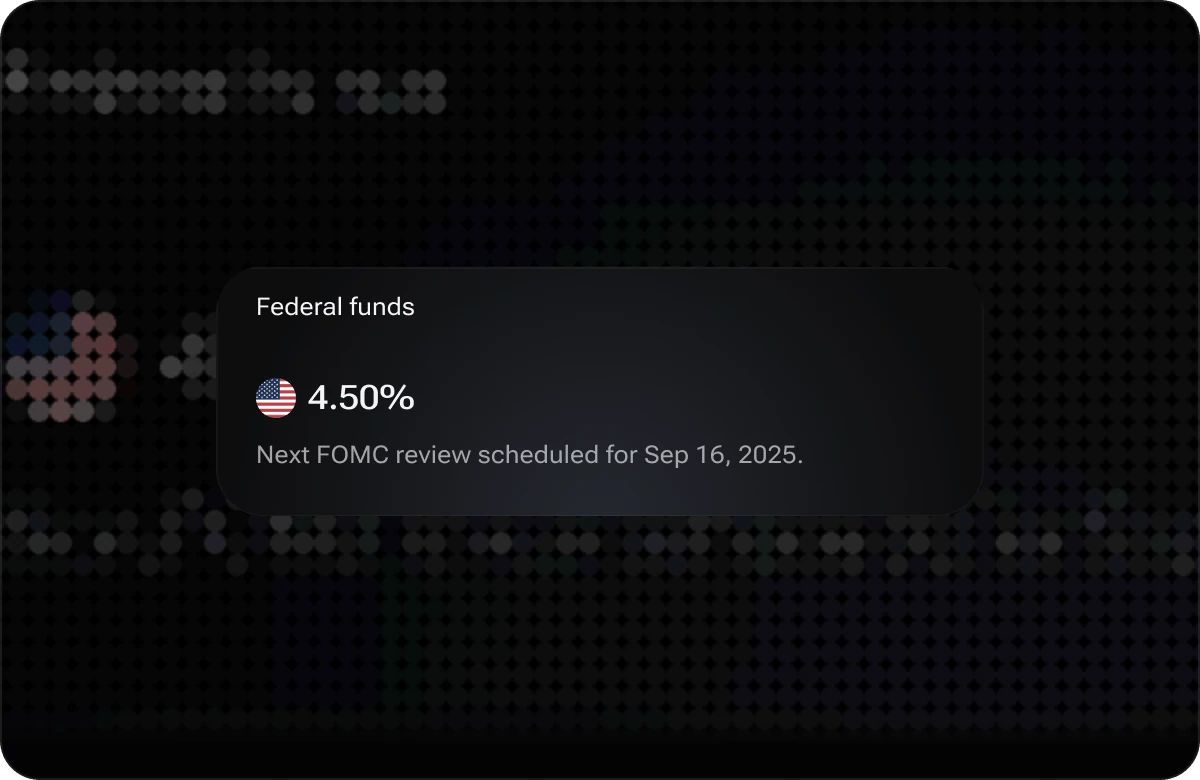 The Fed's latest policy rate and the date of the next FOMC review.
Key U.S. macroeconomic releases — GDP, employment, PMI and more. *(Screenshot coming soon.)*
### Crypto
The Fed's latest policy rate and the date of the next FOMC review.
Key U.S. macroeconomic releases — GDP, employment, PMI and more. *(Screenshot coming soon.)*
### Crypto
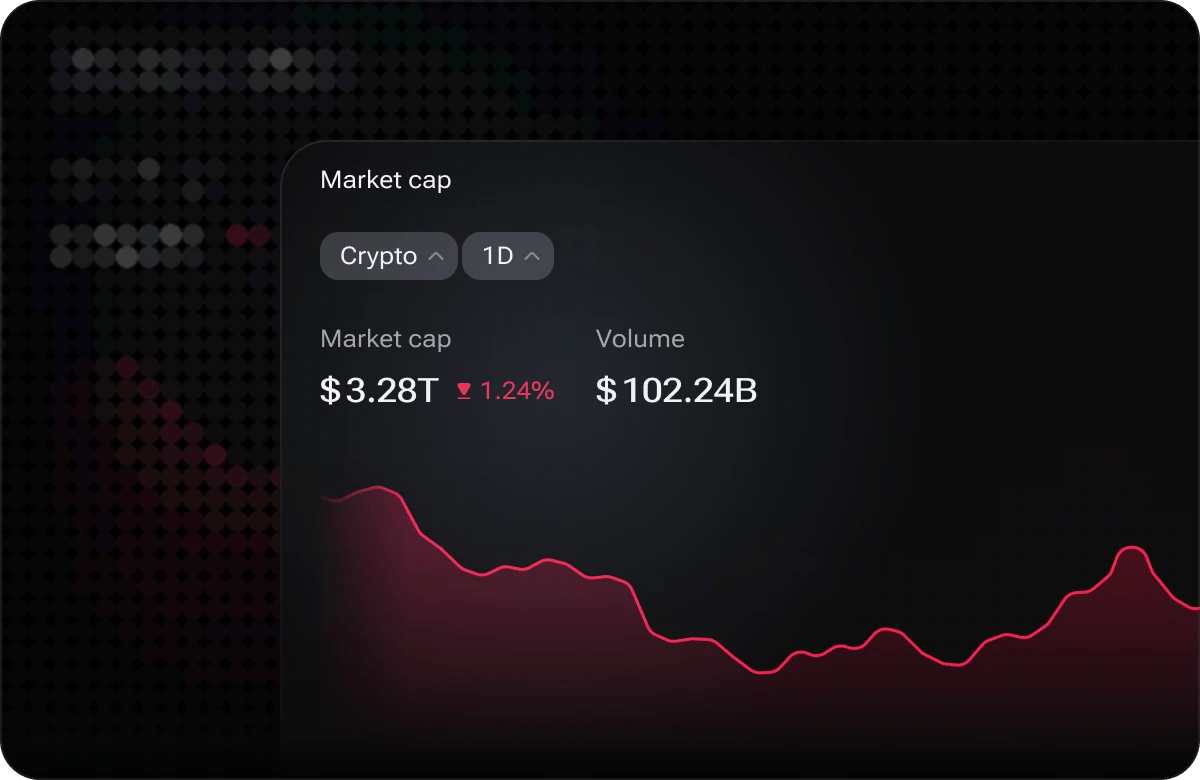 Total crypto market capitalization and trading volume, with trend.
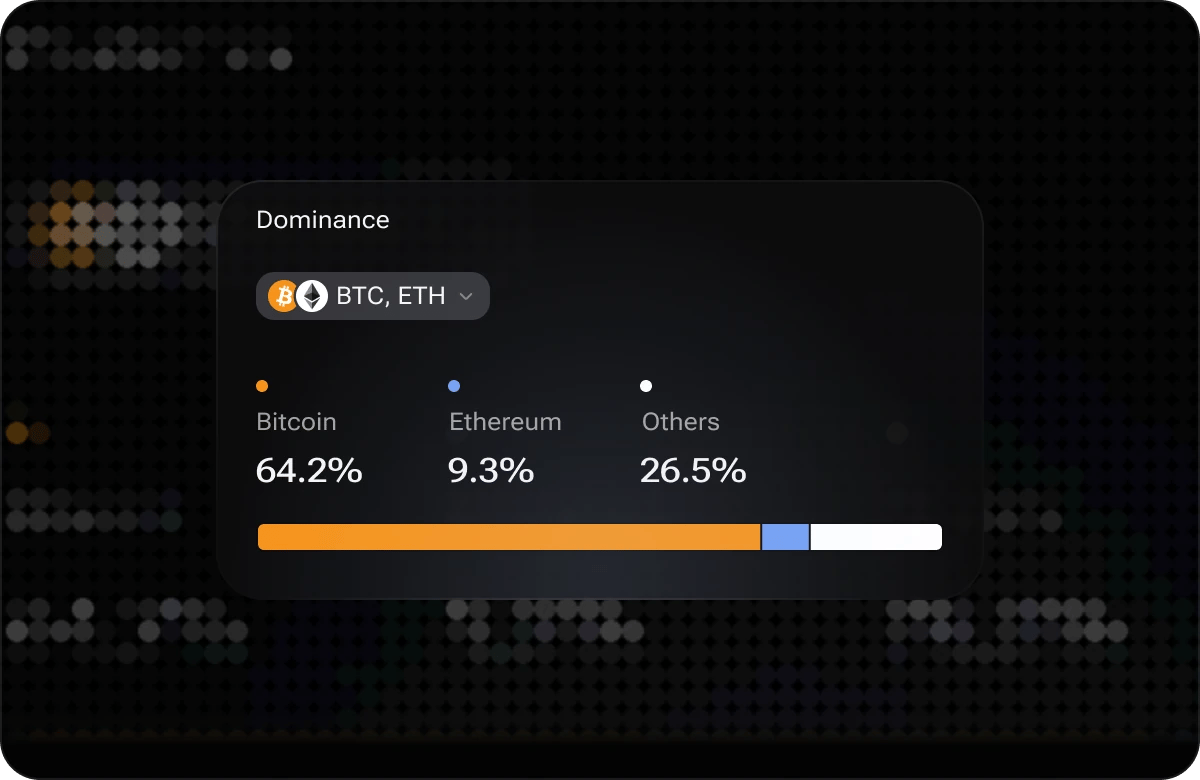 The share of total crypto market cap held by BTC, ETH and others.
### News & Events
The share of total crypto market cap held by BTC, ETH and others.
### News & Events
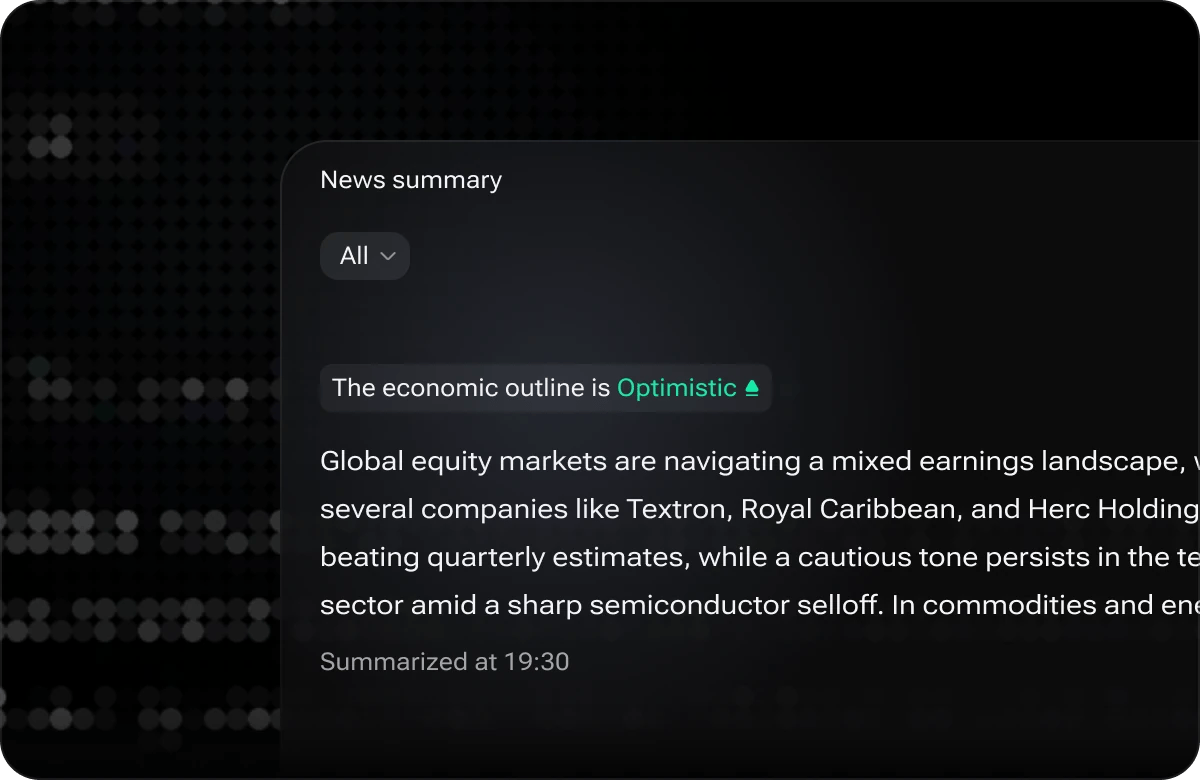 A concise summary of the current market outline, distilled from top stories.
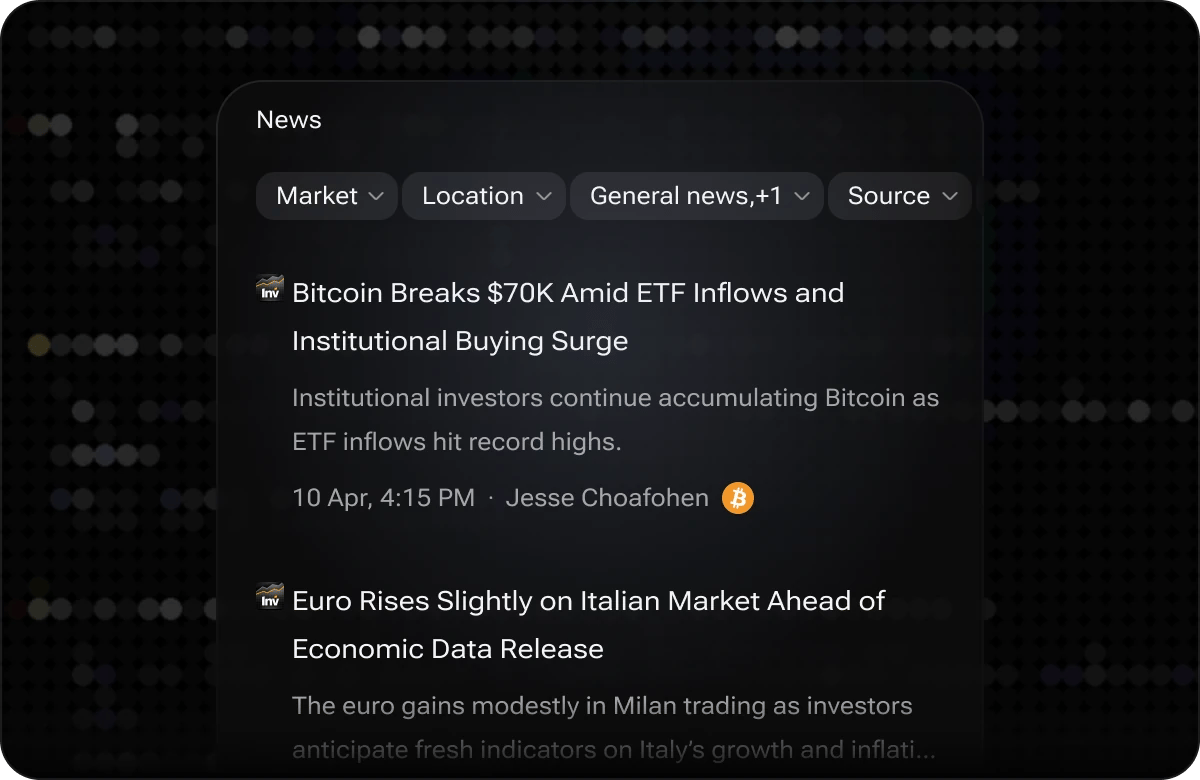 A live, filterable feed of financial headlines across all markets.
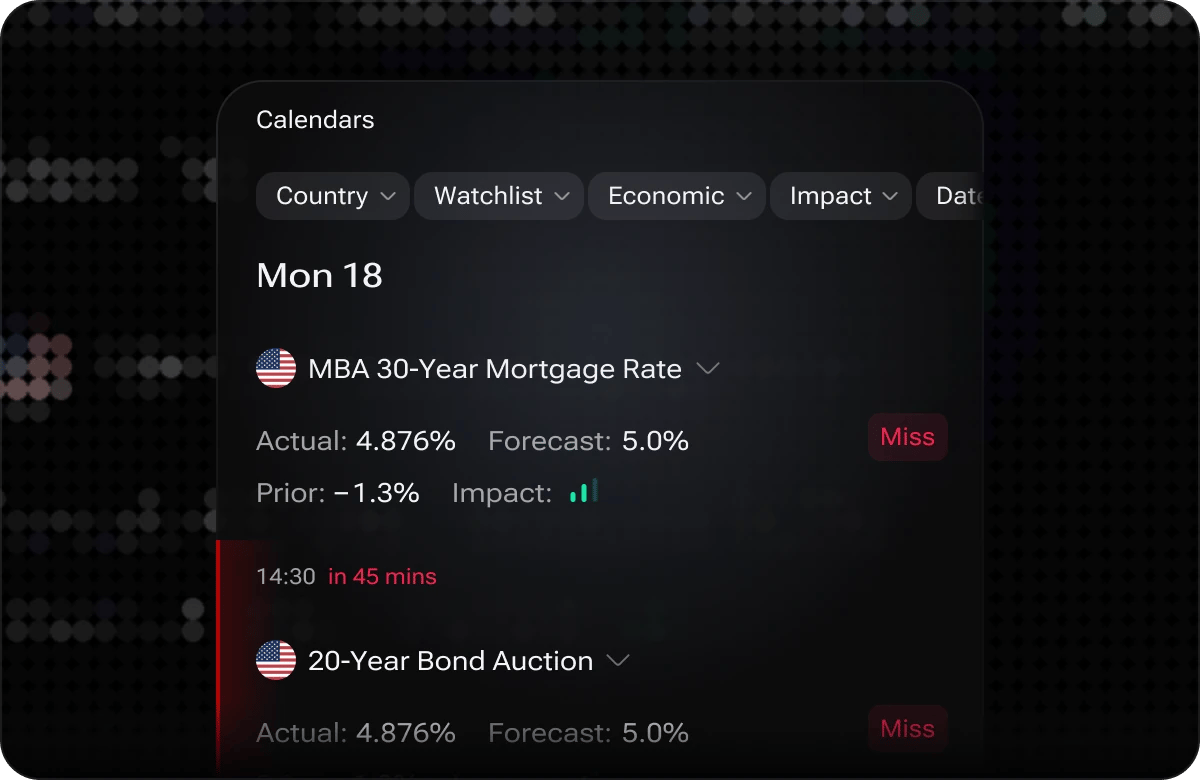 Upcoming and past economic events with impact level, country, and forecast/previous values.
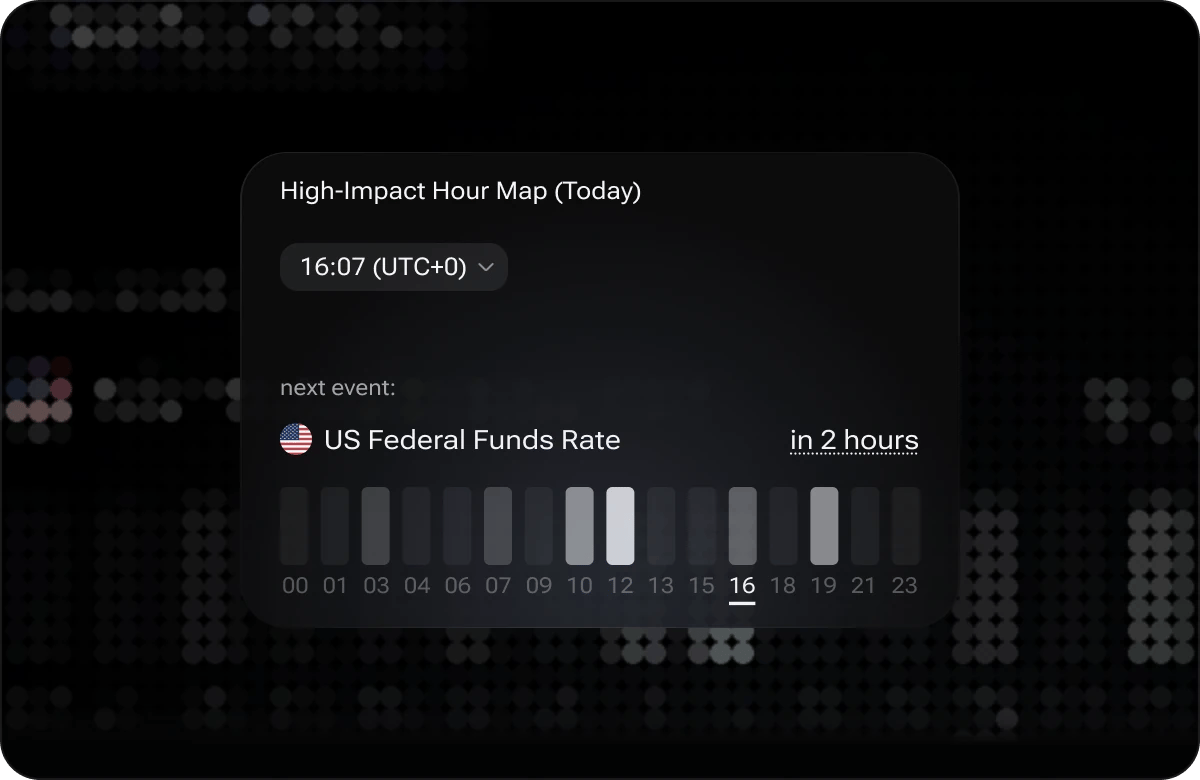 A map of today's high-impact economic release windows, with a countdown to the next event.
## Adding a Widget
Enter **Set Up** mode on the tab where you want to add a widget, then pick from the widget library.
Click the **Main**, **Crypto**, **Stock**, or any custom tab at the top of the dashboard to make it active.
Click the **Set Up** button in the dashboard toolbar. The layout shifts into edit mode — existing widgets display drag handles and action controls, and a widget library panel becomes available.
In the widget library, browse by category or scroll through the full list. Click a widget card to preview a short description of what it displays.
Click **Add** on the widget card. The widget appears at the bottom of the current tab section. You can reposition it immediately or exit Set Up mode and move it later.
Click **Done** (or the close control) to save the new layout. Your tab now includes the new widget, and the change is persisted to your account automatically.
## Configuring a Widget
Most widgets expose a settings or filter panel that lets you tailor the data they display. To open it, click the **settings icon** (⚙) on the widget header while in Set Up mode — or, on some widgets, directly from the widget toolbar when Set Up mode is inactive.
Common configuration options include:
* **Ticker or symbol filter** — Restrict the widget to one or more instruments (e.g., `AAPL`, `BTC/USD`, `EUR/USD`).
* **Time interval** — Choose the candle or data interval (1 min, 5 min, 1 hr, 1 day, etc.) for chart and price widgets.
* **Data field toggles** — Show or hide individual data columns such as volume, market cap, or percentage change.
* **Date range** — Set a custom lookback window for historical charts and economic data widgets.
Apply your choices and the widget refreshes immediately. Settings are saved with your layout — they persist the next time you load the dashboard.
## Updating a Widget
As i88 releases new platform versions, individual widgets may receive feature additions, data improvements, or display enhancements. When a saved widget on your dashboard is out of date, an **Update Available** prompt appears directly on the widget card.
To apply the update:
1. Click the **Update** button on the widget prompt.
2. i88 replaces the widget with the latest version while preserving your existing configuration where possible.
3. Review the widget settings after updating in case new options are available.
If an update resets a setting you had customized, re-enter Set Up mode, reopen the widget settings panel, and reapply your preferences.
## Removing a Widget
To remove a widget you no longer need:
1. Click **Set Up** to enter edit mode.
2. Locate the widget you want to remove.
3. Click the **✕ Remove** control on the widget's action bar.
4. Click **Done** to save the updated layout.
The widget is removed from the tab only — it remains available in the widget library and can be re-added at any time without any loss of your account data.
On desktop, use your **arrow keys** to navigate between dashboard sections quickly without scrolling. This is especially handy when you have dense layouts across multiple sections on a single tab.
A map of today's high-impact economic release windows, with a countdown to the next event.
## Adding a Widget
Enter **Set Up** mode on the tab where you want to add a widget, then pick from the widget library.
Click the **Main**, **Crypto**, **Stock**, or any custom tab at the top of the dashboard to make it active.
Click the **Set Up** button in the dashboard toolbar. The layout shifts into edit mode — existing widgets display drag handles and action controls, and a widget library panel becomes available.
In the widget library, browse by category or scroll through the full list. Click a widget card to preview a short description of what it displays.
Click **Add** on the widget card. The widget appears at the bottom of the current tab section. You can reposition it immediately or exit Set Up mode and move it later.
Click **Done** (or the close control) to save the new layout. Your tab now includes the new widget, and the change is persisted to your account automatically.
## Configuring a Widget
Most widgets expose a settings or filter panel that lets you tailor the data they display. To open it, click the **settings icon** (⚙) on the widget header while in Set Up mode — or, on some widgets, directly from the widget toolbar when Set Up mode is inactive.
Common configuration options include:
* **Ticker or symbol filter** — Restrict the widget to one or more instruments (e.g., `AAPL`, `BTC/USD`, `EUR/USD`).
* **Time interval** — Choose the candle or data interval (1 min, 5 min, 1 hr, 1 day, etc.) for chart and price widgets.
* **Data field toggles** — Show or hide individual data columns such as volume, market cap, or percentage change.
* **Date range** — Set a custom lookback window for historical charts and economic data widgets.
Apply your choices and the widget refreshes immediately. Settings are saved with your layout — they persist the next time you load the dashboard.
## Updating a Widget
As i88 releases new platform versions, individual widgets may receive feature additions, data improvements, or display enhancements. When a saved widget on your dashboard is out of date, an **Update Available** prompt appears directly on the widget card.
To apply the update:
1. Click the **Update** button on the widget prompt.
2. i88 replaces the widget with the latest version while preserving your existing configuration where possible.
3. Review the widget settings after updating in case new options are available.
If an update resets a setting you had customized, re-enter Set Up mode, reopen the widget settings panel, and reapply your preferences.
## Removing a Widget
To remove a widget you no longer need:
1. Click **Set Up** to enter edit mode.
2. Locate the widget you want to remove.
3. Click the **✕ Remove** control on the widget's action bar.
4. Click **Done** to save the updated layout.
The widget is removed from the tab only — it remains available in the widget library and can be re-added at any time without any loss of your account data.
On desktop, use your **arrow keys** to navigate between dashboard sections quickly without scrolling. This is especially handy when you have dense layouts across multiple sections on a single tab.