> ## Documentation Index
> Fetch the complete documentation index at: https://help.i88.io/llms.txt
> Use this file to discover all available pages before exploring further.
# Browse and Filter Market News by Ticker & Date — i88
> Browse the latest market news across all asset classes on i88, filtered by ticker symbol, date, and category to surface the stories most relevant to you.
The i88 News feed aggregates the latest market news across all supported asset classes — Stocks, Crypto, Forex, ETFs, Indices, and Commodities — in one continuously updated stream. Whether you want a broad pulse on the market or need to research news around a specific asset, the News feed gives you fast, filtered access to the stories that matter. Access the News feed by clicking **News** in the left navigation rail, or by navigating directly to [i88.io/news](https://i88.io/news).
 ## Browsing News
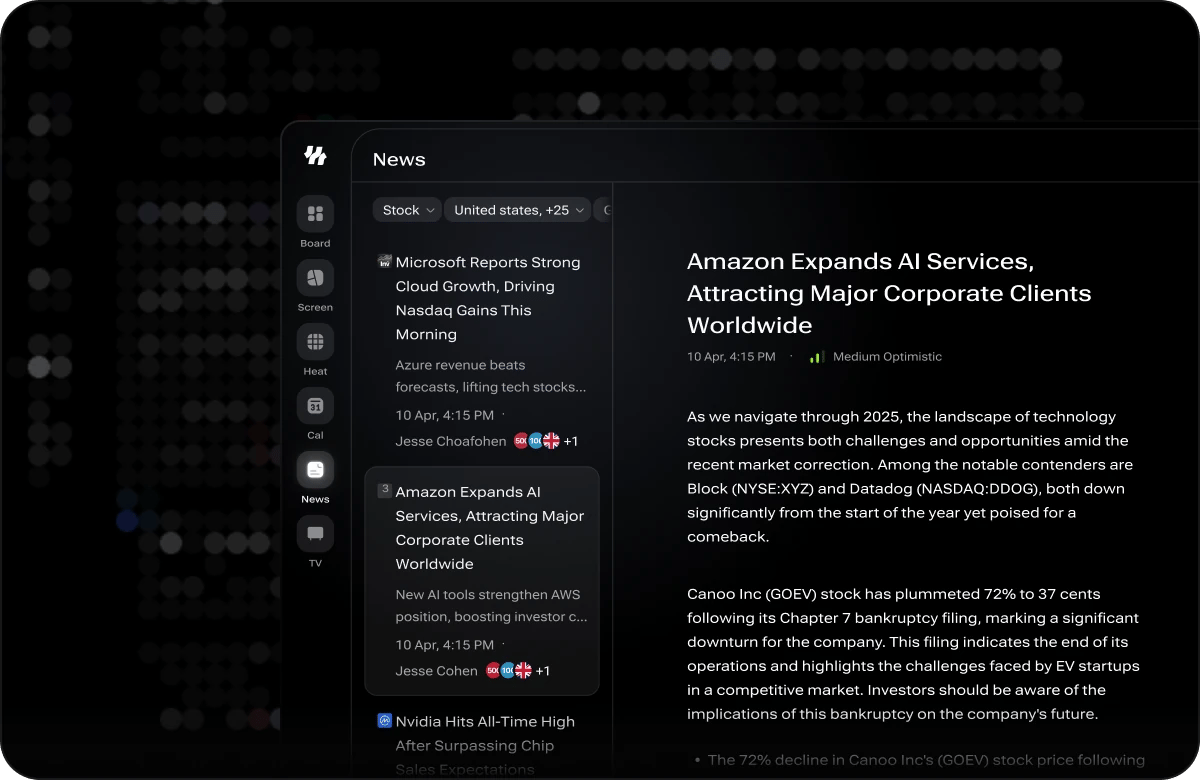
Articles appear in **reverse-chronological order** by default, with the most recent stories at the top. Each article card displays the headline, source, publication time, and any associated ticker symbols so you can assess relevance before clicking through to the full article.
Scroll down to browse older articles, or use the **Date** filter to change the sort order and surface the timeframe you want to focus on.
## Filtering News
Use the available filters individually or in combination to hone in on exactly the coverage you need.
Type a ticker symbol (for example, `TSLA` or `ETH`) into the ticker filter field. The feed instantly updates to show only articles tagged to that asset, filtering out unrelated market news.
Sort articles **Newest First** (the default) or **Oldest First** to trace how a story developed over time. You can also filter to a specific date range to focus on a particular period.
Filter by news category — such as **Earnings**, **Macro**, **Crypto**, **IPO**, or **Dividends** — to surface stories relevant to the type of market event you are tracking.
Combine the **ticker filter** with a specific **date range** to research how news coverage evolved around a key event — such as an earnings release, a product announcement, or a macro shock. This is one of the fastest ways to understand the narrative that drove a price move.
## Sorting and Resetting
* **Newest First** — The default sort order, showing the most recent articles at the top.
* **Oldest First** — Reverse the sort to read coverage chronologically, which is useful when you want to trace how a story developed over time.
To remove all active filters and return to the full unfiltered news feed, click the **Clear** button.
## Ticker-Specific News
News is also available directly on individual ticker pages, embedded alongside charts, financials, and other fundamental data for that asset. This makes it easy to read relevant headlines without leaving your research context. Learn more about what is available on a ticker page in the [Ticker Pages](/market-tools/ticker-pages) guide.
## Browsing News
Articles appear in **reverse-chronological order** by default, with the most recent stories at the top. Each article card displays the headline, source, publication time, and any associated ticker symbols so you can assess relevance before clicking through to the full article.
Scroll down to browse older articles, or use the **Date** filter to change the sort order and surface the timeframe you want to focus on.
## Filtering News
Use the available filters individually or in combination to hone in on exactly the coverage you need.
Type a ticker symbol (for example, `TSLA` or `ETH`) into the ticker filter field. The feed instantly updates to show only articles tagged to that asset, filtering out unrelated market news.
Sort articles **Newest First** (the default) or **Oldest First** to trace how a story developed over time. You can also filter to a specific date range to focus on a particular period.
Filter by news category — such as **Earnings**, **Macro**, **Crypto**, **IPO**, or **Dividends** — to surface stories relevant to the type of market event you are tracking.
Combine the **ticker filter** with a specific **date range** to research how news coverage evolved around a key event — such as an earnings release, a product announcement, or a macro shock. This is one of the fastest ways to understand the narrative that drove a price move.
## Sorting and Resetting
* **Newest First** — The default sort order, showing the most recent articles at the top.
* **Oldest First** — Reverse the sort to read coverage chronologically, which is useful when you want to trace how a story developed over time.
To remove all active filters and return to the full unfiltered news feed, click the **Clear** button.
## Ticker-Specific News
News is also available directly on individual ticker pages, embedded alongside charts, financials, and other fundamental data for that asset. This makes it easy to read relevant headlines without leaving your research context. Learn more about what is available on a ticker page in the [Ticker Pages](/market-tools/ticker-pages) guide.