

Widget catalog
i88 ships a growing library of widgets, grouped into five categories. Expand any widget to see what it looks like and what it shows.Market Overview
Top Indices YTD
Top Indices YTD
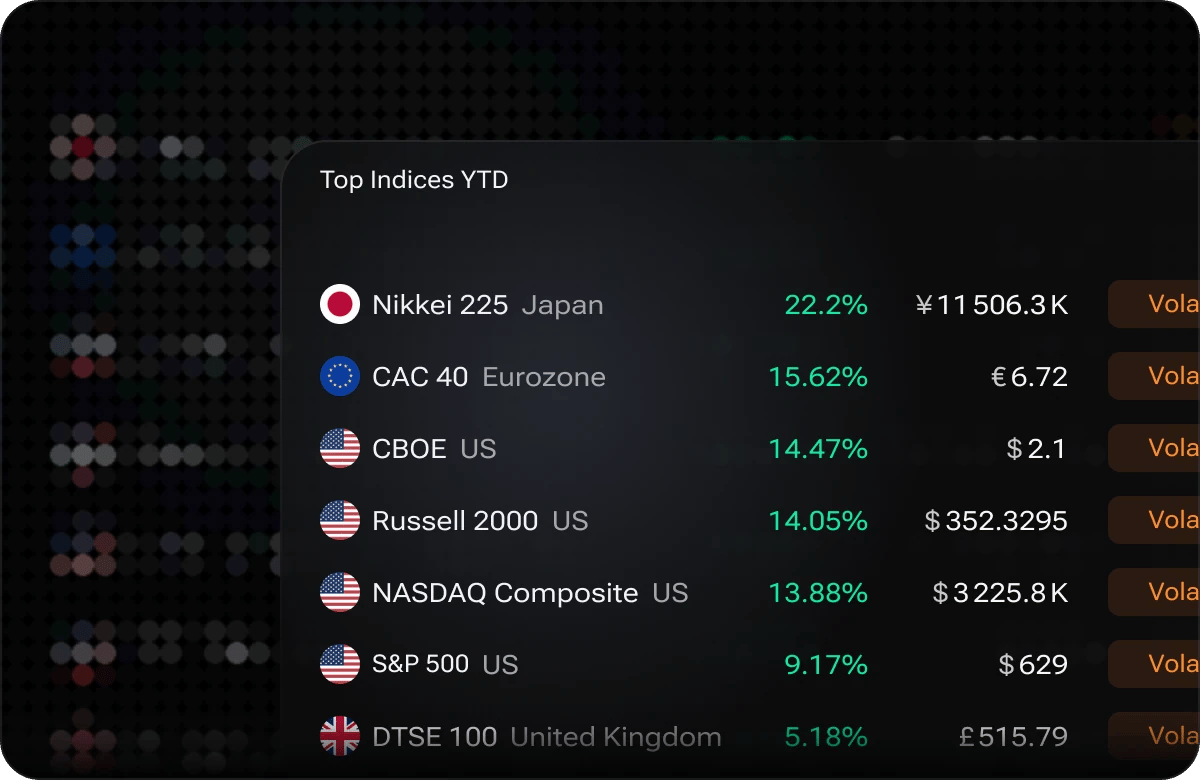
Ranked year-to-date, with value and volatility tag
Sector Performance
Sector Performance
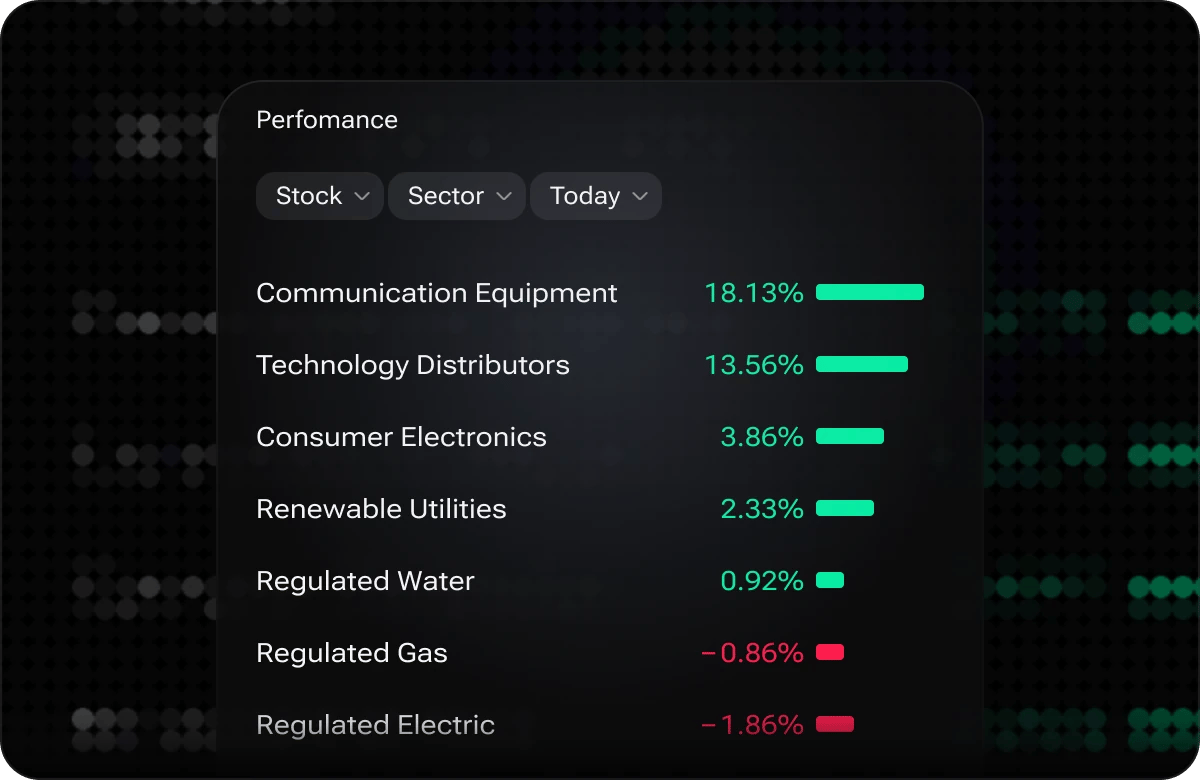
Stock sectors ranked by today’s change
Gainers & Losers
Gainers & Losers
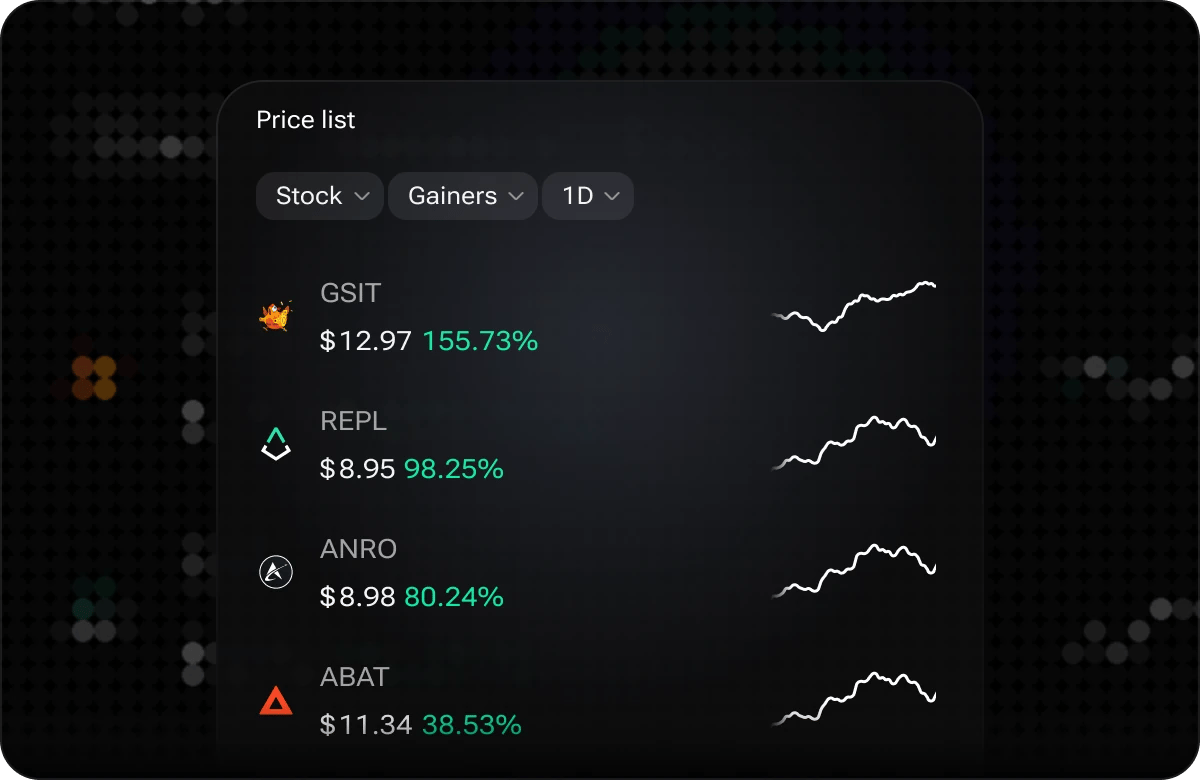
Stock gainers over one day, with sparklines
Exchanges
Exchanges
Price & Charts
Price
Price
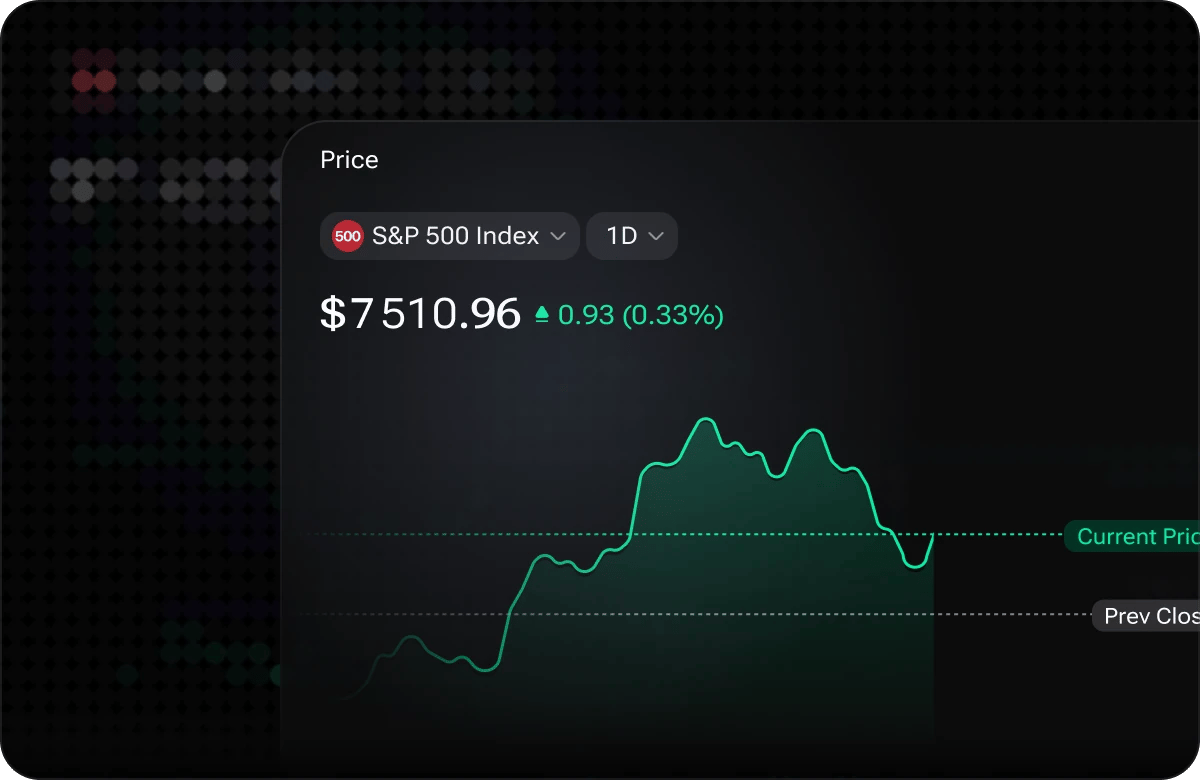
S&P 500 Index over one day, with previous close
Price List
Price List
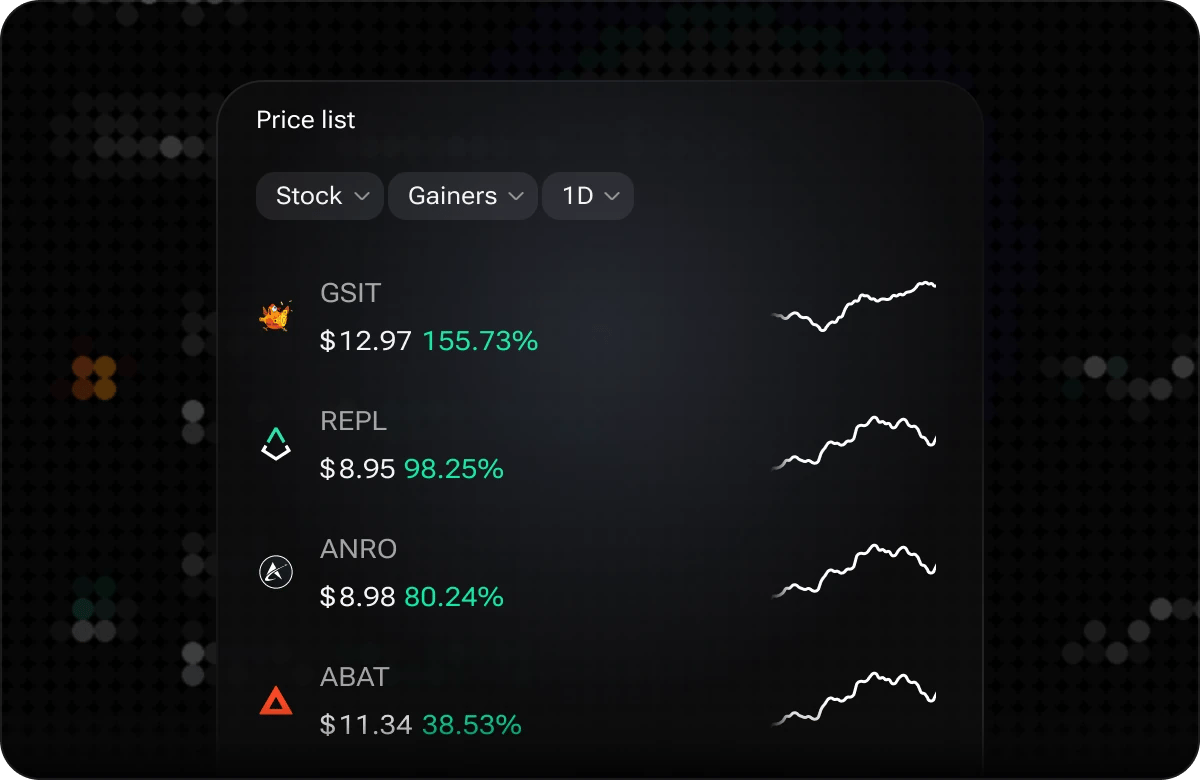
Many tickers at once, price, change and sparkline
Macro & Economy
US Inflation
US Inflation
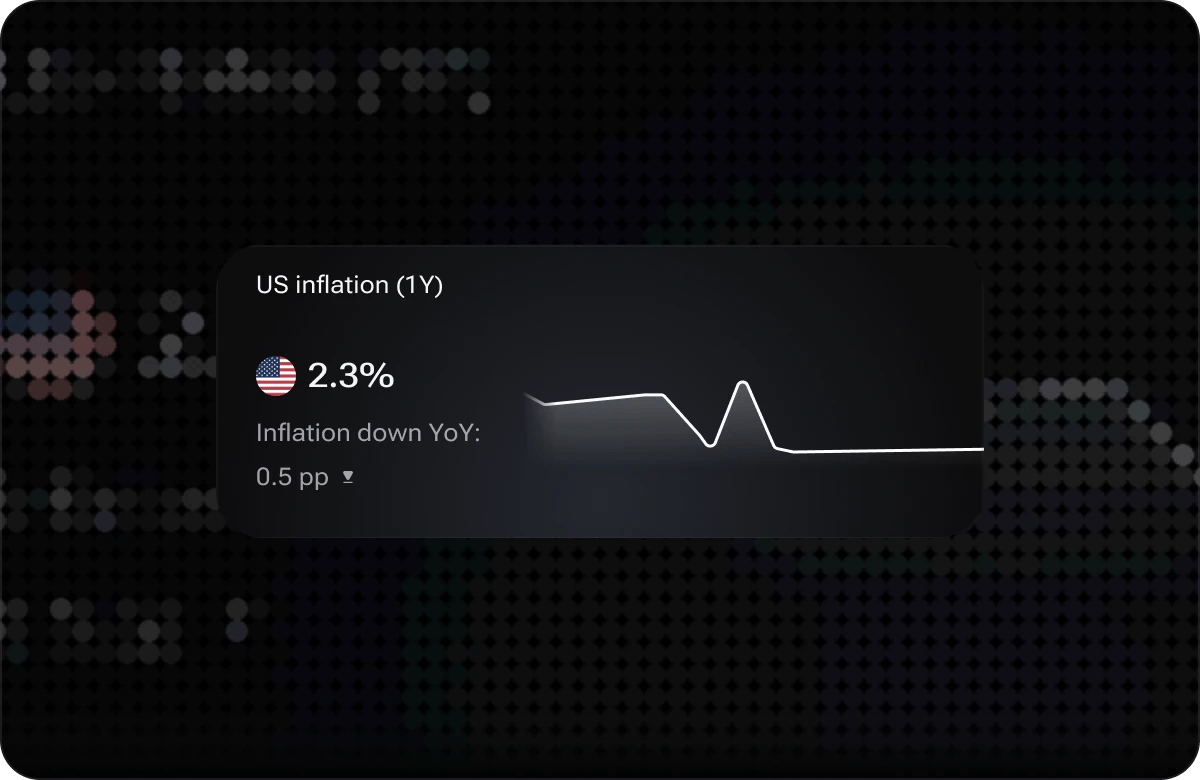
Latest reading and the year-over-year move
Federal Funds Rate
Federal Funds Rate
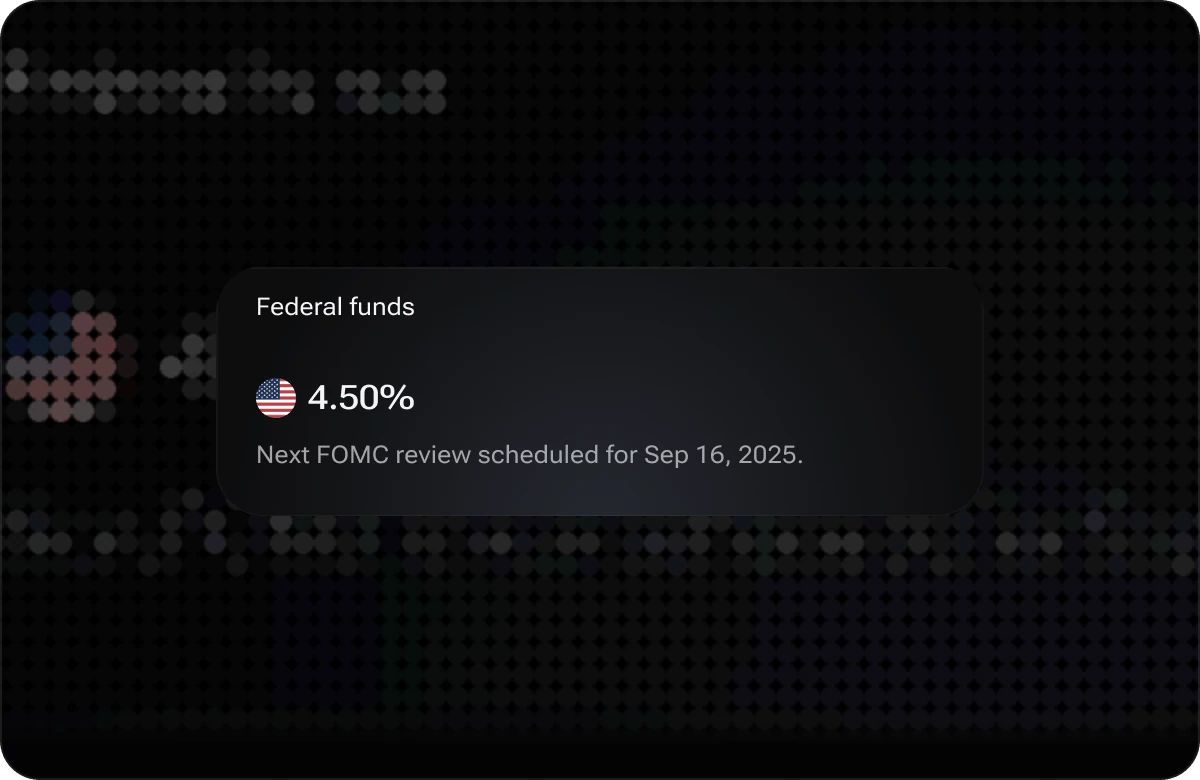
Current policy rate and next FOMC review
US Economic Data
US Economic Data
Crypto
Market Capitalization
Market Capitalization
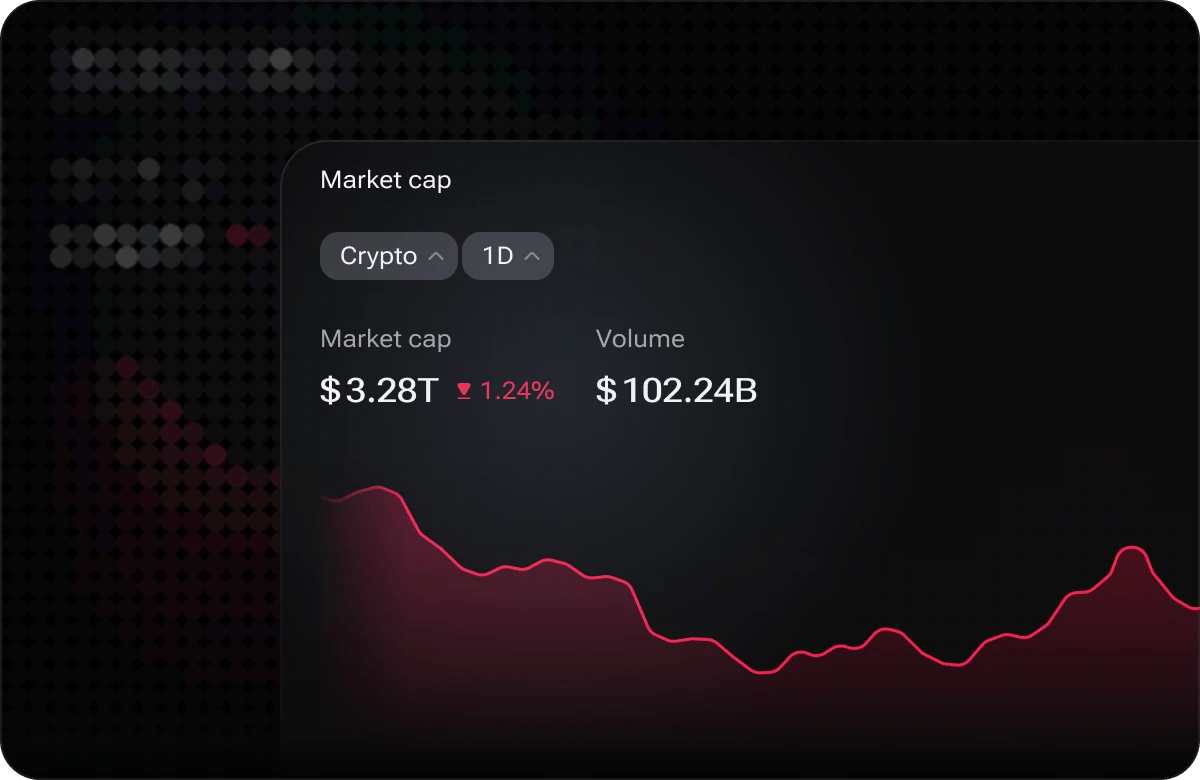
Total crypto market cap beside 24-hour volume
Bitcoin Dominance
Bitcoin Dominance
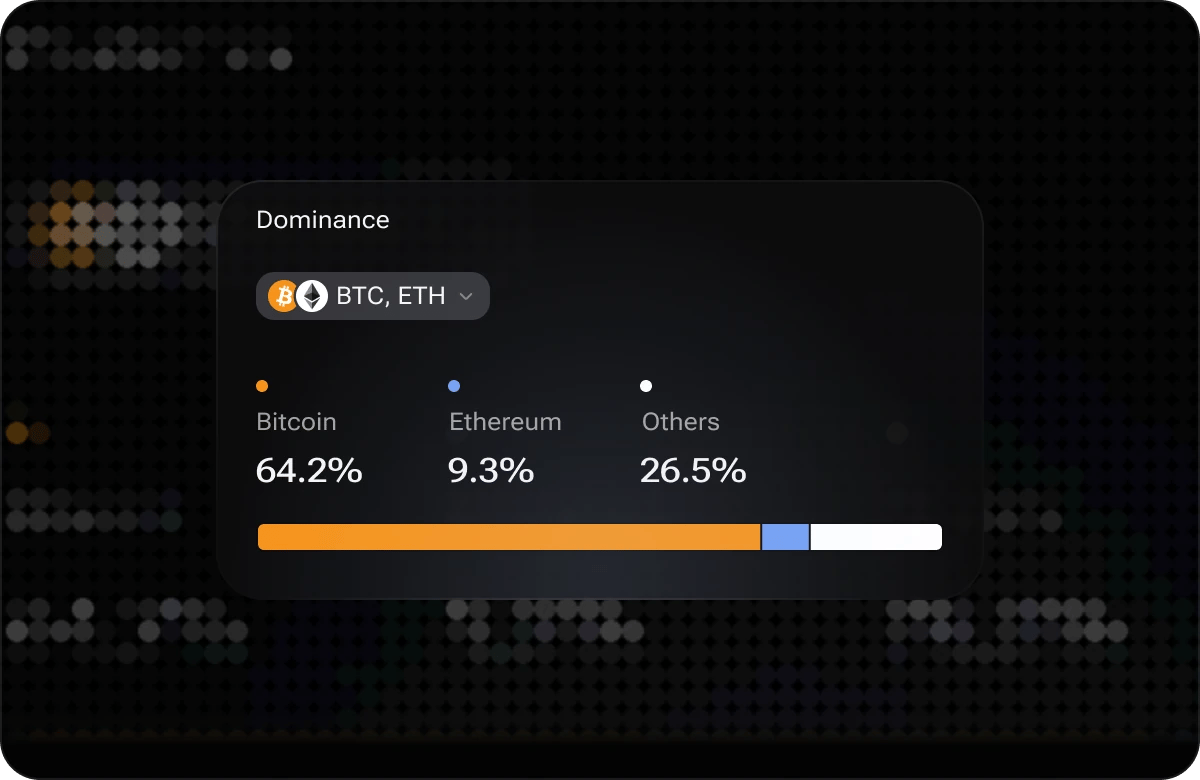
BTC, ETH and others as a share of total market cap
News & Events
News Summary
News Summary
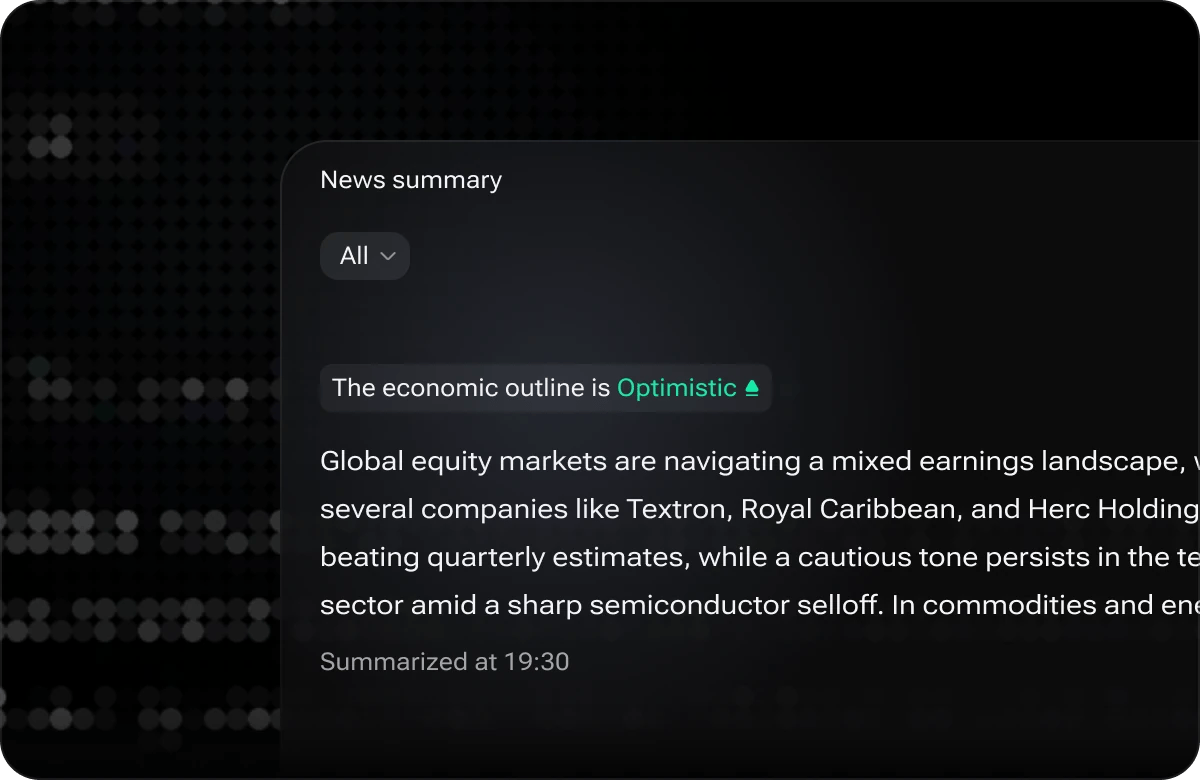
The day’s stories condensed, with a sentiment label
Latest News
Latest News
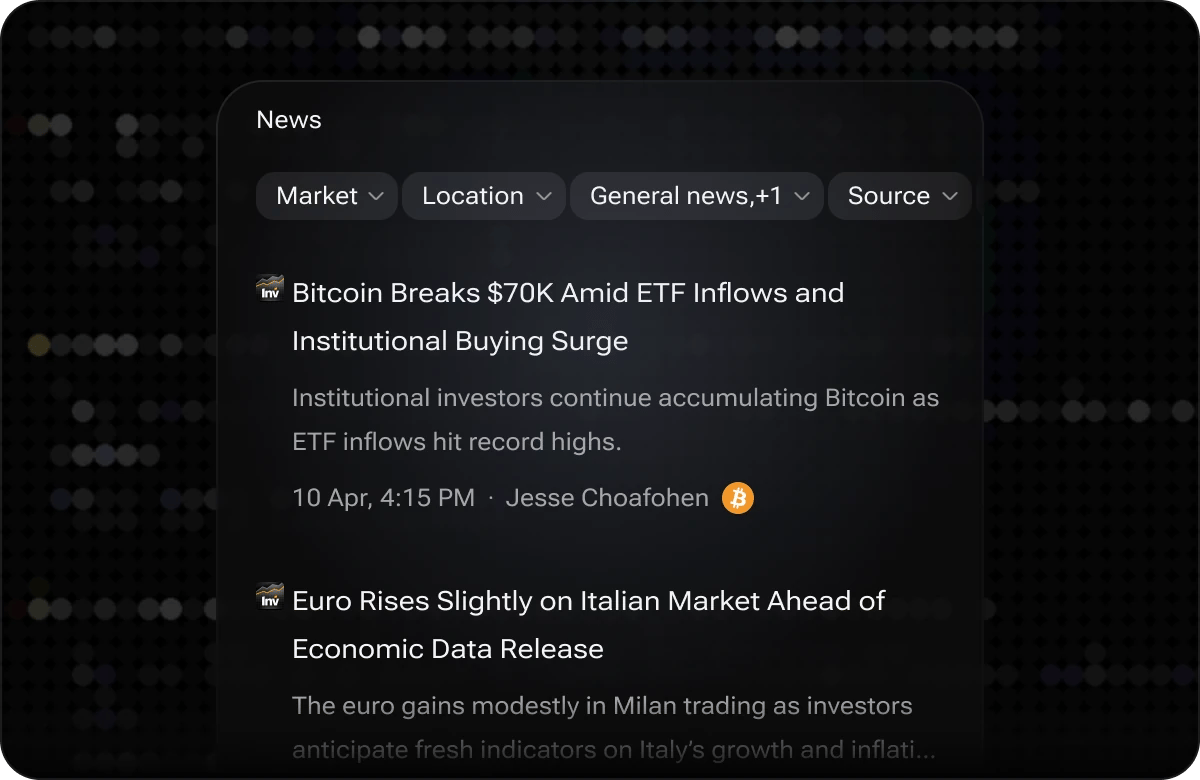
Headlines newest first, filterable by market
Economic Calendar
Economic Calendar
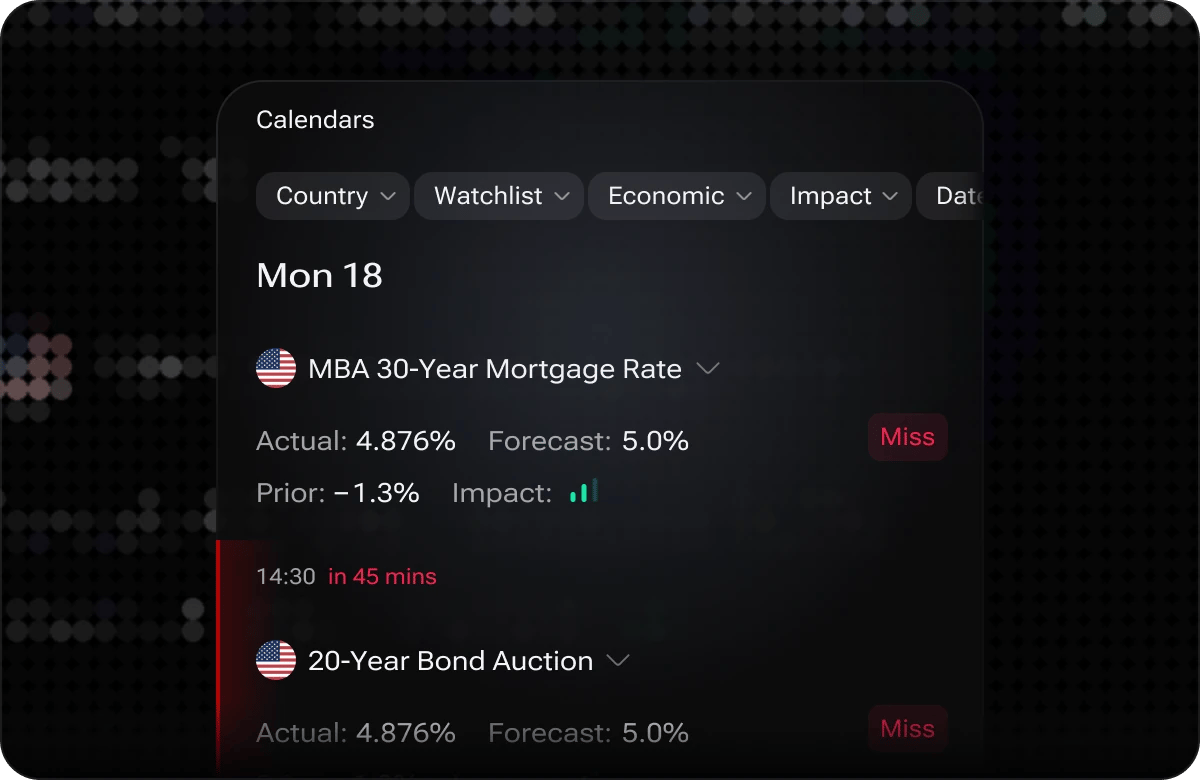
Releases with impact, actual, forecast and prior
High-Impact Hour Map
High-Impact Hour Map
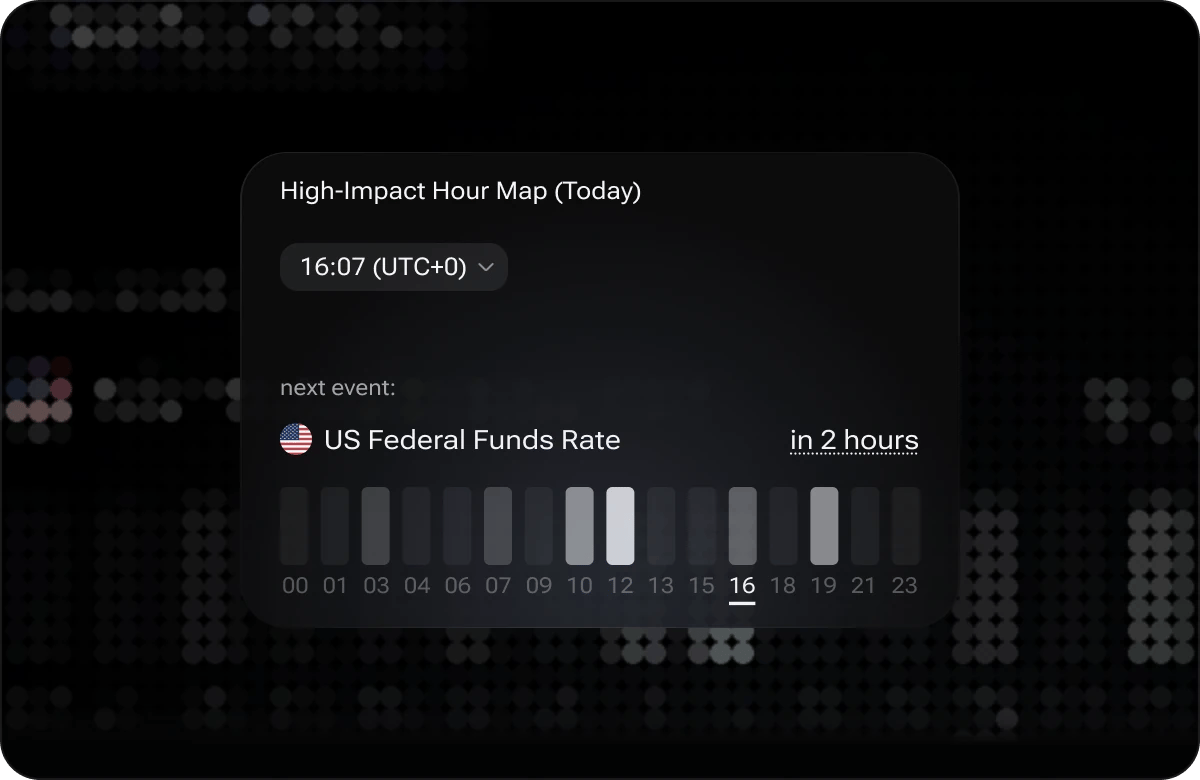
Today’s release windows and the next event
Adding a Widget
Enter Set Up mode on the tab where you want to add a widget, then pick from the widget library.Open the tab you want to edit
Enter Set Up mode
Browse and select a widget
Add the widget to your tab
Exit Set Up mode
Configuring a Widget
Most widgets expose a settings or filter panel that lets you tailor the data they display. To open it, click the settings icon (⚙) on the widget header while in Set Up mode — or, on some widgets, directly from the widget toolbar when Set Up mode is inactive. Common configuration options include:- Ticker or symbol filter — Restrict the widget to one or more instruments (e.g.,
AAPL,BTC/USD,EUR/USD). - Time interval — Choose the candle or data interval (1 min, 5 min, 1 hr, 1 day, etc.) for chart and price widgets.
- Data field toggles — Show or hide individual data columns such as volume, market cap, or percentage change.
- Date range — Set a custom lookback window for historical charts and economic data widgets.
Updating a Widget
As i88 releases new platform versions, individual widgets may receive feature additions, data improvements, or display enhancements. When a saved widget on your dashboard is out of date, an Update Available prompt appears directly on the widget card. To apply the update:- Click the Update button on the widget prompt.
- i88 replaces the widget with the latest version while preserving your existing configuration where possible.
- Review the widget settings after updating in case new options are available.
Removing a Widget
To remove a widget you no longer need:- Click Set Up to enter edit mode.
- Locate the widget you want to remove.
- Click the ✕ Remove control on the widget’s action bar.
- Click Done to save the updated layout.